

You search your own business on Google, and nothing useful appears. You create a Business Profile, then you get stuck: Google wants a video, or your video was rejected, or the profile says “No more ways to verify.” This is one of the most common problems we see with small businesses.
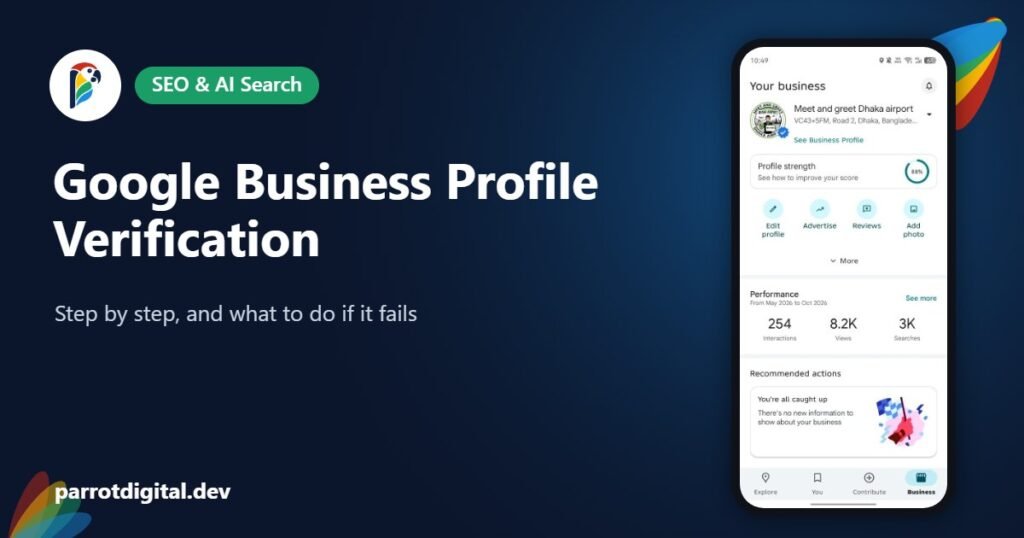
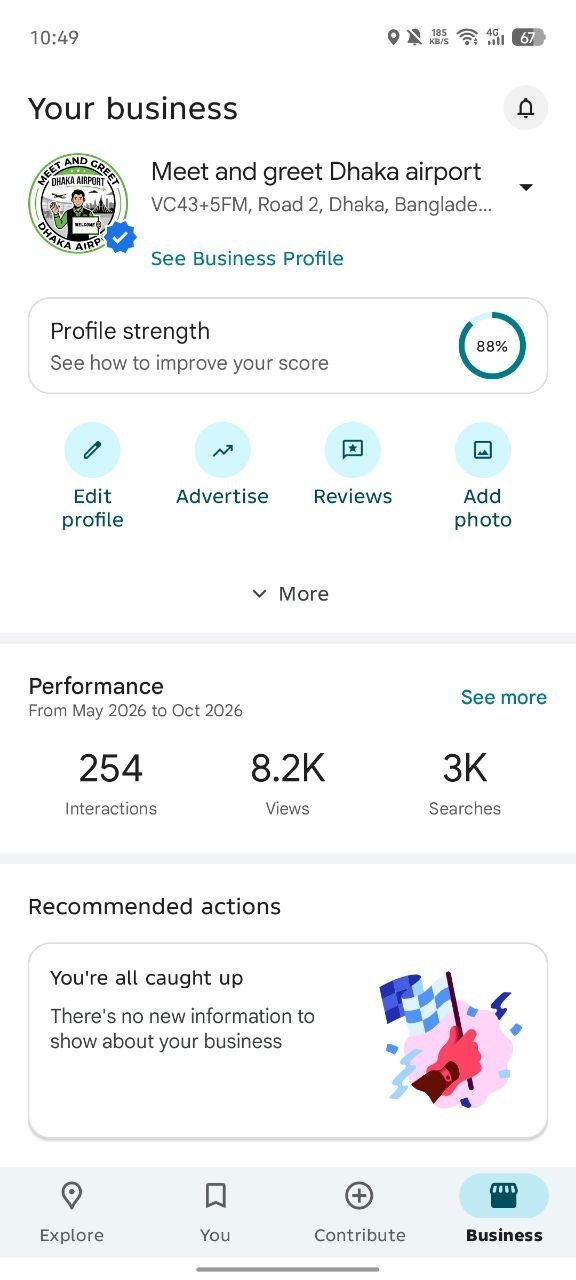
This guide walks through Google Business Profile verification step by step, what Google says about video verification, and what to do when it fails. We have done this for real clients, including Meet and Greet Dhaka Airport, whose verified profile had 8.2K views and 254 customer interactions from May to October 2026.
Why Google Business Profile verification matters
Until a profile is verified, you cannot manage it properly. Google Business Profile verification tells Google that you really run the business. Once it is verified, you can keep your hours, services, photos and posts up to date, and reply to reviews.
Before Google Business Profile verification: 3 checks that prevent most failures
- Use your real business name. Do not add keywords or a city to the name unless they are part of the real name. See Google’s guidelines for representing your business.
- Choose the right type: storefront or service area. If customers do not visit you at a location with permanent signage, you are probably a service-area business, not a storefront.
- Keep your details identical everywhere. Use the same name, address and phone number on your profile, your website and your social pages.
How to verify your Business Profile, step by step
- Go to google.com/business and sign in with the Google account you want to own the profile. Use a business account you will keep, not a staff member’s personal one.
- Search for your business, or add it if it is not there.
- Choose your category, and add your address or service area, phone number and website.
- When asked to verify, use one of the options Google offers you.
- Follow the steps, submit, and wait for Google’s review.
Google decides which verification methods you get, and you cannot change them. The options can include video, phone, text, email or postcard, depending on your business and country.
How to pass video verification
Video is now common, and it is where many owners get stuck. According to Google’s help page, the video should show key details that confirm you manage or represent the business. Keep out sensitive information such as bank, tax or ID numbers, private details, and other people’s faces.
In practice, plan to show these before you press record:
- Where you are: the street, nearby shops or landmarks, then your location.
- That it is your business: permanent signage with your business name, if you are a storefront.
- That you run it: something only staff can reach, such as unlocking the door, opening a cash drawer, or showing equipment or tools used in the work.
These extra tips come from owners and consultants in community forums, not from Google, but they come up again and again: record in one continuous take, follow the on-screen instructions in the app, and do not submit an edited or compiled video.
What to do if Google Business Profile verification fails
Your video was rejected
Google says you can record a new video, and it tells you why the first was not accepted. Look under “Review issues” in your profile, fix exactly what is flagged, and try again. Do not simply send the same video again.
“No more ways to verify”
This means the automated options have run out. Contact Google Business Profile support from your profile’s help section, and have your proof ready: business registration or licence, a utility bill with the business address, and photos of your signage.
The profile was suspended
Suspension is a different problem. Do not create a new profile for the same business. Read Google’s page on fixing suspended or disabled profiles, correct anything that breaks the guidelines, then submit an appeal with evidence such as your business registration, licence or tax certificates.
Common mistakes to avoid
- Using a virtual office or a mailbox as your storefront address.
- Stuffing keywords into the business name.
- Creating duplicate profiles when one gets stuck.
- Registering the profile on a freelancer’s account. It should be in your own account, with others added as managers.
What to do after you are verified
Google Business Profile verification is the start, not the finish. Fill in every field, add real photos and your services, post updates regularly, and ask happy customers for reviews. This is the kind of work behind our local SEO for a carpet store in Phnom Penh, where both shops have held top local positions since 2023.
Stuck on Google Business Profile verification? See our local SEO service, or book a free call. We cannot promise an outcome, because the final decision is Google’s, but we can show you what to fix.
Frequently asked questions
How long does Google Business Profile verification take?
It varies by method and business. Google reviews some videos within days, while others take longer. Avoid editing your business details during the review.
Can I choose my verification method?
No. Google decides which methods are available for your profile. If video is offered, Google recommends using it.
Can I verify a business without a shop?
Yes. Set it up as a service-area business, and hide your address if customers do not visit you. In the video, show your tools, your vehicle or proof that you do the work.
Why was my video verification rejected?
Google lists the reasons under Review issues in your profile. Common causes are not showing the location, the business name or proof that you manage the business. Fix what is flagged and record a new video.
One Response